
Choosing and running a scanner
Scanning IDs on staff phones: a personal-device policy
Published November 9, 2026 · 2 sources linked
Can staff scan IDs on their own phones?
Yes. An ID scanner app can run on staff-owned or venue-owned phones. A short policy covers device sign-in, what stays on each phone, lost devices, departing employees and charging.
The device policy at a glance
- Which phones
- Staff phones, venue phones or both, on a list of signed-in phones the manager keeps
- Signing in
- Each phone by a QR code from the hub, each person by their own PIN
- A lost phone
- Reported to the manager the same shift, with the hand check or a spare until a replacement is signed in
- Someone leaves
- Phone synced, venue phone returned or the app removed, and the person the policy names ends their access the same day
- At the door
- Phones charged before the shift, a charger at the door station and a spare
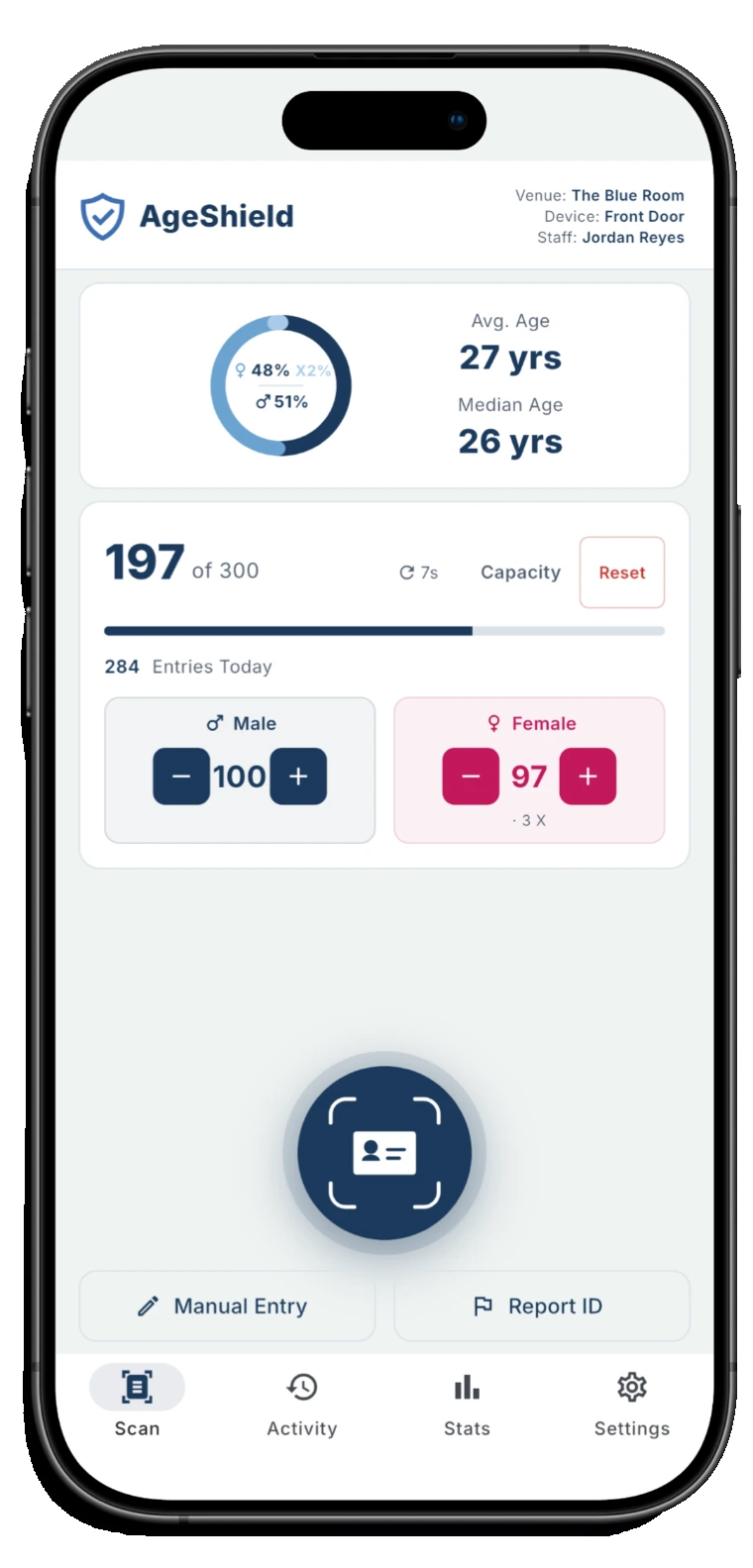
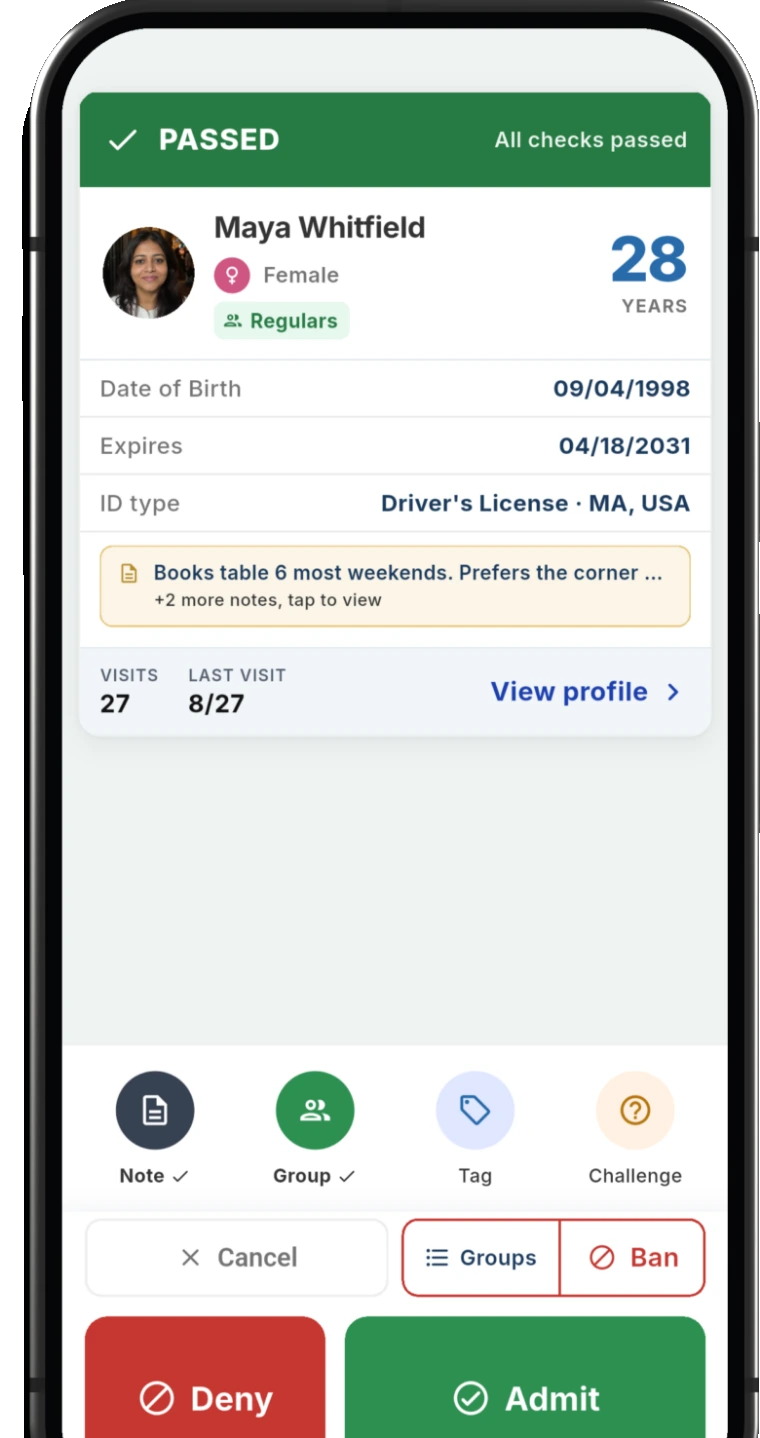
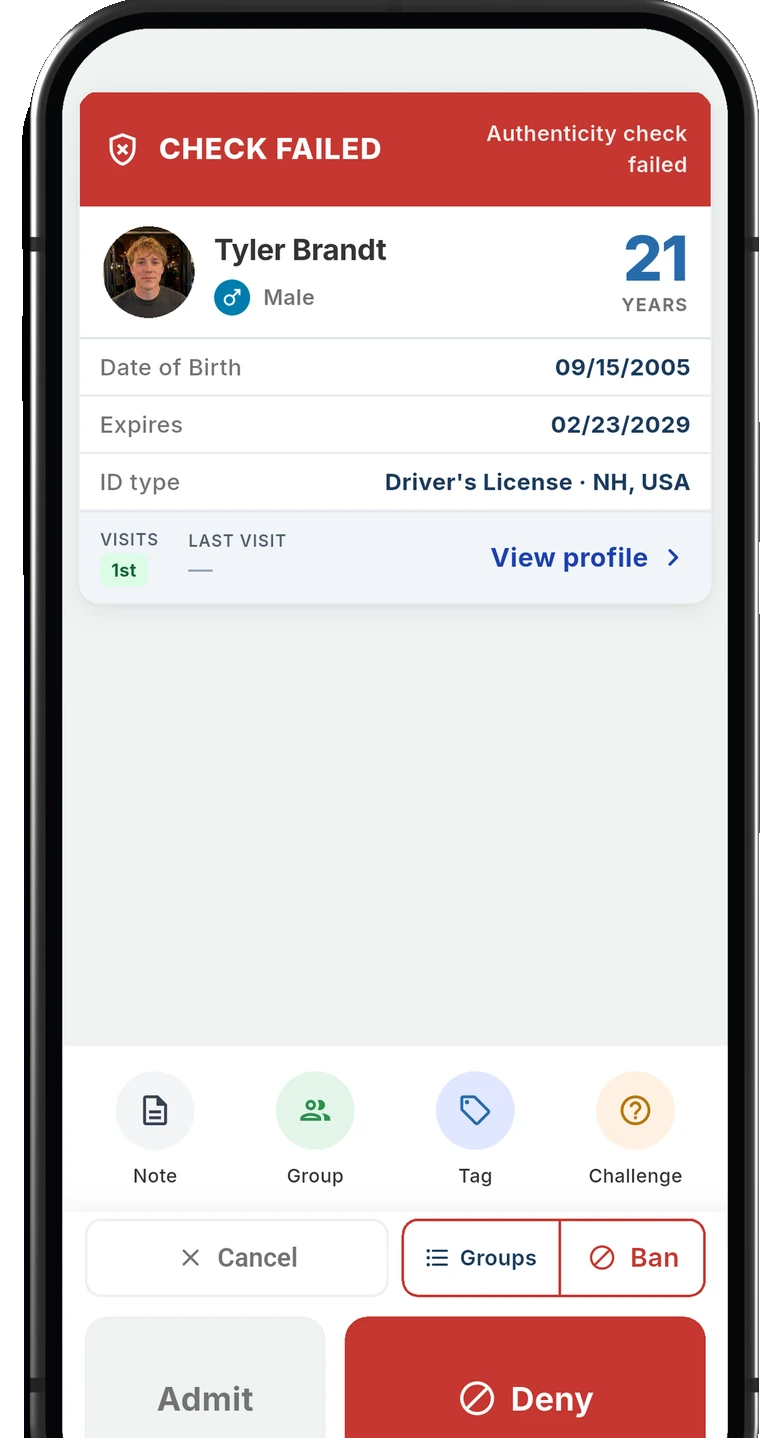
AgeShield ID Scanner
Know who scanned, whoever owns the phone
Turn on staff sign-in and each scan records who made it, by personal PIN. If a phone breaks, you set up another one with a sign-in QR code from the hub.
Staff phones, venue phones or both
Staff-owned phones avoid a hardware purchase when employees already have supported devices. Venue phones cost money up front, but they stay in the building, charge overnight and pass to the next person at the end of a shift without anyone's personal phone involved.
- Question
- Phones to buy
- Staff's own phones
- None
- Venue phones
- One for each place staff check IDs, plus chargers
- Question
- After the shift
- Staff's own phones
- The phone goes home with its owner
- Venue phones
- The phone stays at the venue
- Question
- Battery at the start of a shift
- Staff's own phones
- Whatever charge it arrived with
- Venue phones
- Charged at the venue
- Question
- Calls and messages at the door
- Staff's own phones
- The staff member's own
- Venue phones
- Only what the venue sets up
- Question
- When someone leaves
- Staff's own phones
- The app comes off a phone the venue does not own
- Venue phones
- The phone stays and goes to the next person
A mix works too: a venue phone at the front door, with staff phones at the bar or as spares.
Whichever you choose, the phone has to run the app. AgeShield runs on an iPhone or iPad on iOS 15.5 or later, or an Android phone or tablet on Android 8.0 or later. Whether an app suits the venue at all, rather than a handheld scanner, is covered in how to choose an ID scanner for a bar.
Which phones are signed in
A phone becomes a scanner when it is signed in to the venue. In AgeShield, staff install AgeShield ID Scanner from the App Store or Google Play and the phone scans a QR code from the hub. A policy can keep that step with the manager, so the code is not passed around a group chat.
Keep a short list of the phones signed in: whose phone it is, whether it is personal or the venue's and the date it was added. Each phone on the list carries the venue's Banned, VIP and Regulars lists, so a short list is easier to account for than one that grows with every new hire.
How many phones scan at once is its own question, covered in how many ID scanners a bar needs. On AgeShield every plan covers three devices scanning at once, and each device past three is a slot added from Billing in the hub.
Phones on the list also need looking after. The Cybersecurity and Infrastructure Security Agency's advice to small businesses includes installing security updates promptly, and a policy can ask staff to do the same on a signed-in personal phone. It can also ask for a screen lock on every signed-in phone, since a personal phone leaves the building after every shift.
Cybersecurity and Infrastructure Security Agency (CISA), Secure Your Business
How staff sign in
A signed-in phone is not the same as a signed-in person. With staff sign-in turned on in AgeShield, each scan records who made it by personal PIN, and the visit record also shows which device it came from.
That only works while each PIN stays with one person. A policy line that PINs are never shared, and never written on the phone or its case, keeps the record worth having.
Roles decide what a person can do. Scan-only staff sign in with a PIN on the phone and scan, with no hub access. Staff can also open a guest's details, and the access log records who opened them, when and from which device.
Owners and managers change venue settings, and staff see them read-only. A venue can also set the lowest scan mode its devices may use, and a new device starts in Standard.
What stays on the phone
The phone works out each result itself, from the lists it already has. The Banned, VIP and Regulars lists are on every phone, and the Banned list is the copy the phone last downloaded. That is what lets scanning keep going without a signal.
Visits and staff decisions made without a signal wait on the phone and sync once it is back online. While they wait, a banner reads "Offline · preliminary, syncs when online", so a policy can ask that the banner is gone before a phone leaves the building at the end of a shift. When the signal drops shows the rest.
The venue's privacy controls determine what a phone shows. Fields the venue excludes are dropped on the phone as the ID is read, so they are never shown, sent or stored. Staff still see the name, the age and the expiry on the phone, whatever the venue excludes.
How long details are kept afterward is a venue setting too, described on privacy controls.
A lost, broken or replaced phone
Write down what staff do when a signed-in phone goes missing: tell the manager on duty the same shift, and say which phone it was and when it was last used at the door. The manager notes it on the list of signed-in phones.
Then the door needs a working phone. In AgeShield, if a phone breaks, another one is set up with a sign-in QR code from the hub. Until it is, staff check by hand. The routine in how to check IDs at the door covers the gap.
A personal phone adds a step, because the staff member may need to replace their own phone first. Until then they can scan on a venue phone or the spare, if the venue keeps one.
When someone leaves
Leaving is where a personal-phone policy gets tested, because the phone walks out with its owner. Four steps on the last shift close it out:
Let the phone sync
The phone goes back online and the offline banner clears, so every visit from the shift reaches the hub.
Return the phone or remove the app
A venue phone is handed back. On a personal phone, the AgeShield app comes off before the person leaves.
End their access
The policy names who ends a leaver's access the same day, rather than at the next schedule change.
Update the list
The phone comes off the list of signed-in phones, with the date it was removed.
Battery and charging at the door
A phone at the door runs its camera and screen for hours. A policy can ask for phones charged before the shift, a charger and cable at the door station and a spare, which also covers the night someone arrives with a nearly flat personal phone.
Cold matters at an outdoor door too. Apple designs iPhone for use between 32 and 95 degrees Fahrenheit, and says that in very cold conditions outside that range an iPhone's battery can run down sooner for a while, the iPhone can turn off and it might not charge. A policy for a winter line such as college winter break can keep phones in a pocket between scans and charge them indoors.
A weak signal is a separate problem. AgeShield keeps scanning offline and syncs once the phone reconnects, and if the Banned list has not synced for 30 minutes the app warns "Ban list may be out of date · verify manually" so staff check by hand.
Apple Support, If your iPhone or iPad gets too hot or too cold
Writing it into the door policy
The device rules add a few lines to the house's door policy:
- Who decides between staff phones, venue phones or both
- The list of signed-in phones, who keeps it and who signs a new phone in
- One PIN per person, never shared or written down
- A screen lock and current updates on every signed-in phone
- A lost phone: who is told and what takes over at the door
- Someone leaving: the four last-shift steps
- Charging: phones charged before the shift, a charger at the door and a spare
AgeShield ID Scanner
Staff phones that scan the same way
AgeShield ID Scanner runs on the phones and tablets your staff already carry, and each one signs in with a QR code from the hub. With staff sign-in on, every scan records who made it by personal PIN, and the venue's privacy controls decide what any phone shows.
Common questions
Can employees use their own phones as ID scanners?
Yes. AgeShield runs on the iPhones, iPads and Android phones and tablets staff already carry, on iOS 15.5 or Android 8.0 and later. Each phone is signed in to the venue with a QR code from the hub, and with staff sign-in on, each scan records who made it by personal PIN.
Can staff see guest details on their own phones?
Staff still see the name, the age and the expiry on the phone. Fields the venue excludes are dropped on the phone and never shown. Staff can open a guest's details, scan-only staff cannot reach the hub and the access log records who opened a guest's details and from which device.
Does a staff phone need Wi-Fi or data to scan IDs?
Not to scan. The phone works out the result from the lists it already has and syncs visits once it reconnects. If the Banned list has not synced for 30 minutes, the app tells staff to verify the guest manually.
What happens when a staff phone breaks or goes missing during a shift?
A device policy can have staff check by hand or move to a spare and report the loss to the manager before the shift ends. In AgeShield, a replacement phone is set up with a sign-in QR code from the hub.
What should happen when an employee who scanned on their own phone leaves?
On the final shift, the phone syncs, the offline banner clears and the AgeShield app is removed. The policy names who ends their access the same day, and the phone comes off the list of signed-in phones.
Sources
Setting up phones for your team?
Tell us how many staff check IDs and whether they use their own phones or the venue's, and we'll answer by email.