
Privacy controls
You decide what AgeShield keeps
Most ID scanners decide for you what a scan collects. AgeShield puts it in your hands, field by field, with a retention window you set. You can run it so tightly that a scan leaves a record it happened and no personal details in readable form.
Four decisions, all yours
Decide field by field
For every field on the ID you pick one of three things: exclude it, show it to staff at the door only or show it and store it. Excluded fields are dropped on the phone as the ID is read, so they are never shown, sent or stored.
Decide how long it stays
Every venue sets its own window for guest details, from 30 days by default up to 2 years on Core or 5 years on Pro. Set it to 0 and no name, date of birth or ID digits are written to the visit record at all. Lowering the window also shortens records you already hold.
Ask guests before you scan
Turn on the consent screen and every guest sees what you keep and for how long before the scan. Their answer, I Agree or Decline, is saved with the visit.
Keep the age, not the birthday
Store only whether the guest is old enough, rather than their date of birth. Staff still see the age on the phone at the door, so the check works the same.
What each field can do
Set this per venue in the hub, under Setup, Venues, Data and Privacy. Two fields cannot be excluded because the person at the door needs them to make the call. Everything else is yours to switch off, and the door keeps working either way.
What this venue keeps
- Date of birthNot keptKept
- ID numberNot keptKept
- GenderNot keptKept
- ZIP codeNot keptKept
- The visit and its resultKept
| Field | Your options | Default | Notes |
|---|---|---|---|
| Full name | Shown at the door, or shown and stored | Shown and stored | The door decision needs it, so it always shows on the phone |
| Date of birth and age | Date of birth, age at scan, age range or only whether the guest is old enough | Date of birth | The age always shows on the phone |
| ID number | Excluded, checked but not kept or last 4 kept | Last 4 kept | The full number is never stored |
| ID expiration | Shown at the door, or shown and stored | Shown and stored | Used for the expiry check |
| Gender | Excluded, shown at the door or shown and stored | Shown and stored | Stored, it fills the gender chart and the gender filter in the hub |
| Issuing state and country | Excluded, shown at the door or shown and stored | Shown and stored | Stored, it fills the top states chart and the state filter. Excluding it also stops returning guests being recognized |
| ID type | Excluded, shown at the door or shown and stored | Shown and stored | Stored, it shows in Scan Activity and exports. Excluding it also stops returning guests being recognized |
| ZIP code | Excluded, shown at the door or shown and stored | Shown at the door | Stored, it fills the top ZIP codes chart and lets staff ask for the ZIP as a door question |
- Full nameDefault: Shown and stored
Shown at the door, or shown and stored
The door decision needs it, so it always shows on the phone
- Date of birth and ageDefault: Date of birth
Date of birth, age at scan, age range or only whether the guest is old enough
The age always shows on the phone
- ID numberDefault: Last 4 kept
Excluded, checked but not kept or last 4 kept
The full number is never stored
- ID expirationDefault: Shown and stored
Shown at the door, or shown and stored
Used for the expiry check
- GenderDefault: Shown and stored
Excluded, shown at the door or shown and stored
Stored, it fills the gender chart and the gender filter in the hub
- Issuing state and countryDefault: Shown and stored
Excluded, shown at the door or shown and stored
Stored, it fills the top states chart and the state filter. Excluding it also stops returning guests being recognized
- ID typeDefault: Shown and stored
Excluded, shown at the door or shown and stored
Stored, it shows in Scan Activity and exports. Excluding it also stops returning guests being recognized
- ZIP codeDefault: Shown at the door
Excluded, shown at the door or shown and stored
Stored, it fills the top ZIP codes chart and lets staff ask for the ZIP as a door question
Default is what a new venue starts with. Changing a field affects new scans, not scans you already hold.
Retention is one number you control
Days, not tiers. Banned guests and anyone on a list that blocks entry are the exception: their details are kept while the restriction lasts, so the door still recognizes them.

How little you can keep
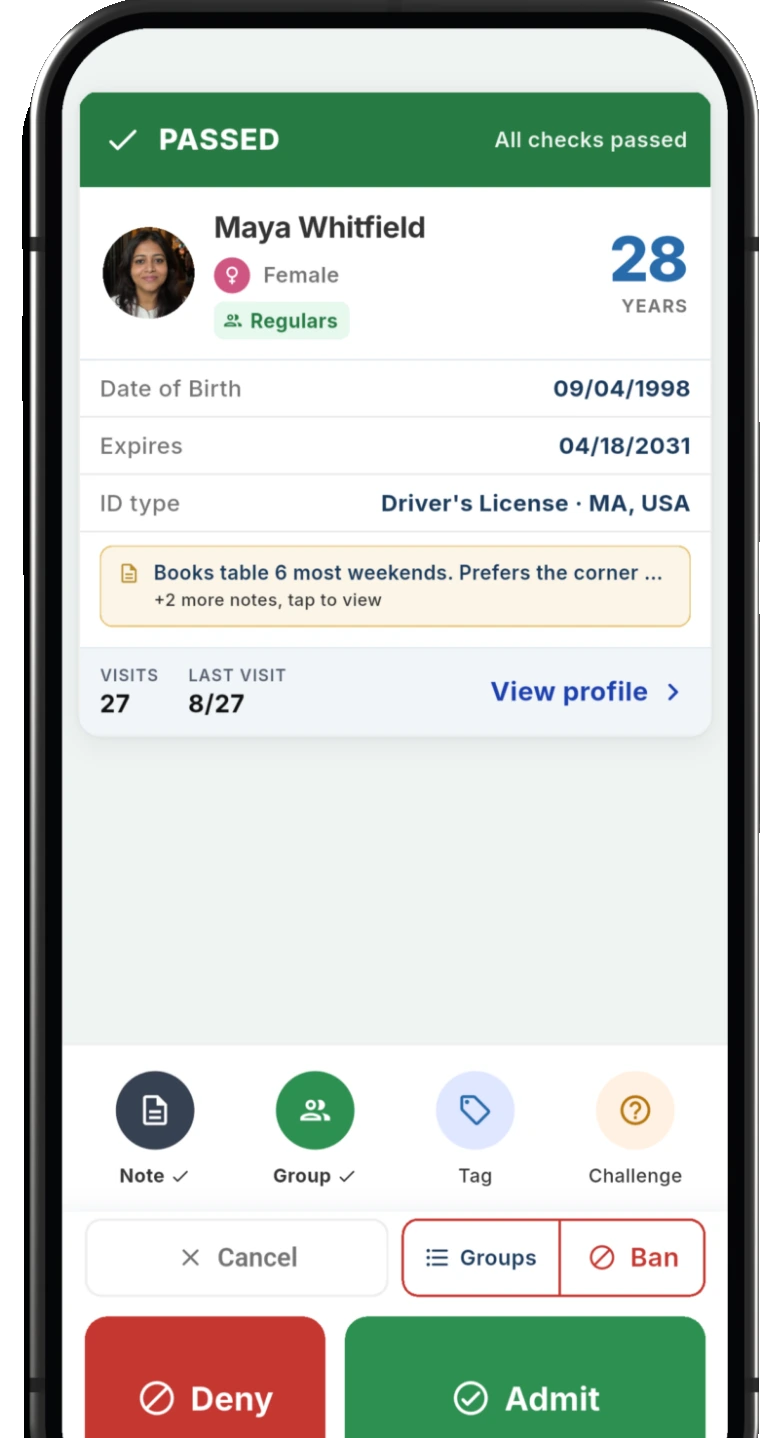
Exclude every field the door decision does not need, store only whether the guest is old enough, turn guest records off and set retention to 0. Staff still see the name, the age and the expiry on the phone, and the fake ID check still runs. This is what AgeShield keeps afterwards, and what you give up.
What is kept
- That a scan happened, and when
- Which device, and which staff member if staff sign-in is on
- What the ID check found, and any alert such as expired
- Whether the guest met your minimum age
- Admit or deny, with the reason and any override note staff typed
No date of birth, age, ID number, address or photo, and nothing from the ID in readable form. A visit keeps whether the guest met your minimum age, what staff decided and any note staff type, and notes are kept as written.
What you give up
- Returning guests are not recognized, so there is no visit history and no re-entry warning
- Banned and group alerts stop firing at the door, and the Ban List becomes a manual lookup
- Bans can no longer be added from a scan
- Guest records are not shared between your venues
- Age, gender, state and ZIP charts stop filling
Scanning, the fake ID check, underage and expired alerts, admit and deny, capacity and your counts all keep working. How a scan works
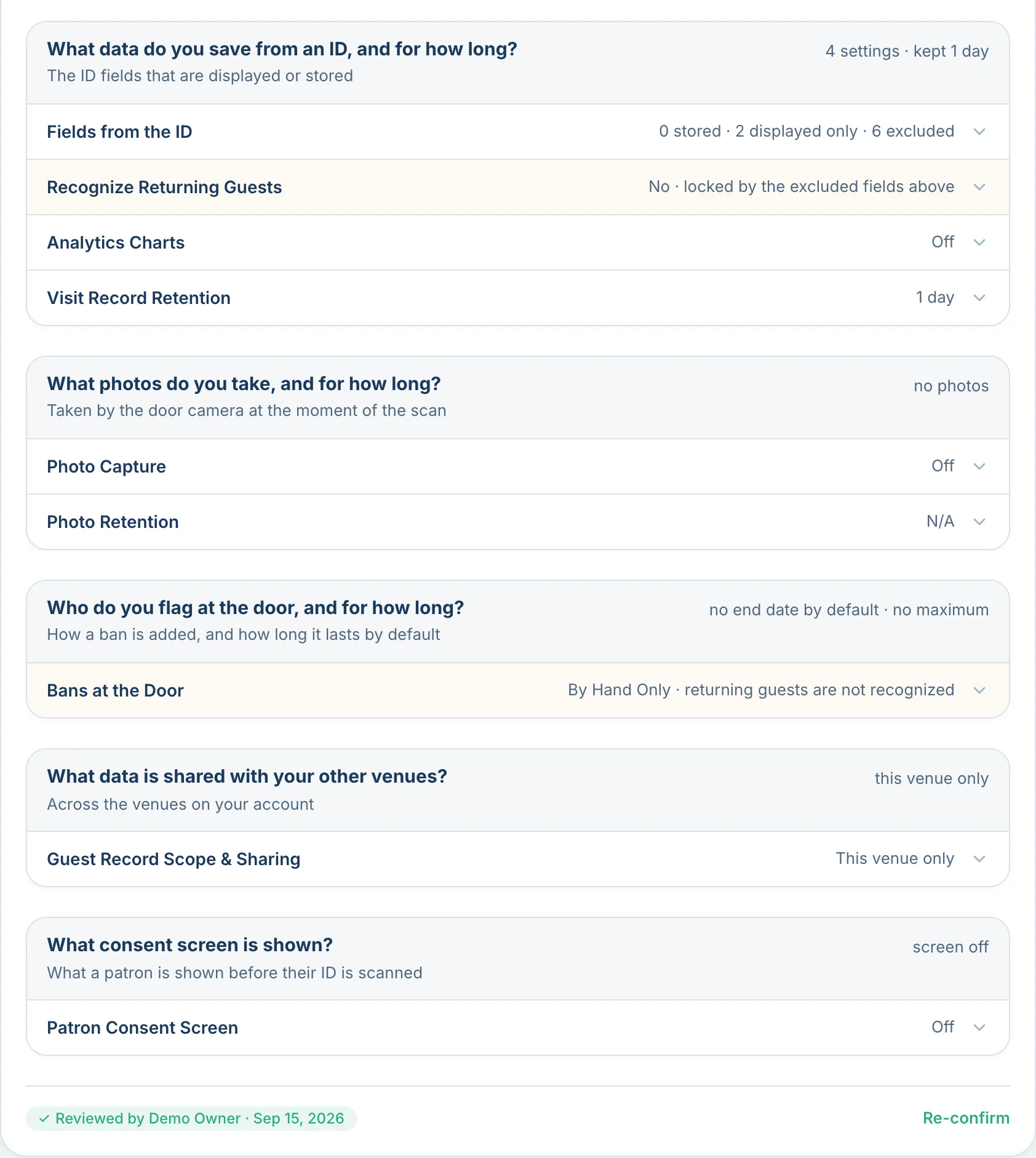
Tell guests before you scan
Switch on the consent screen and the guest sees what is collected, how long it is kept and who it is shared with, under your venue name and your privacy policy link, then taps I Agree or Decline. AgeShield records that choice with the visit.
See who looked
Owners and managers change settings and staff see them read-only. Every change is recorded with its before and after values. Each time someone opens a guest's details or photos, the log records who, when and from which device, and whether they were working at a different venue. Export it as CSV, Excel or PDF.
Who can do what
| Role | Can do |
|---|---|
| Owner | Everything, including the all-venues log and the shared Ban List |
| Manager | Change venue settings, view and export the venue audit log, erase a guest or a visit's data |
| Staff | Scan, admit or deny, open a guest's details. Settings are read-only |
| Scan-only staff | Sign in with a PIN on the phone and scan. No hub access |
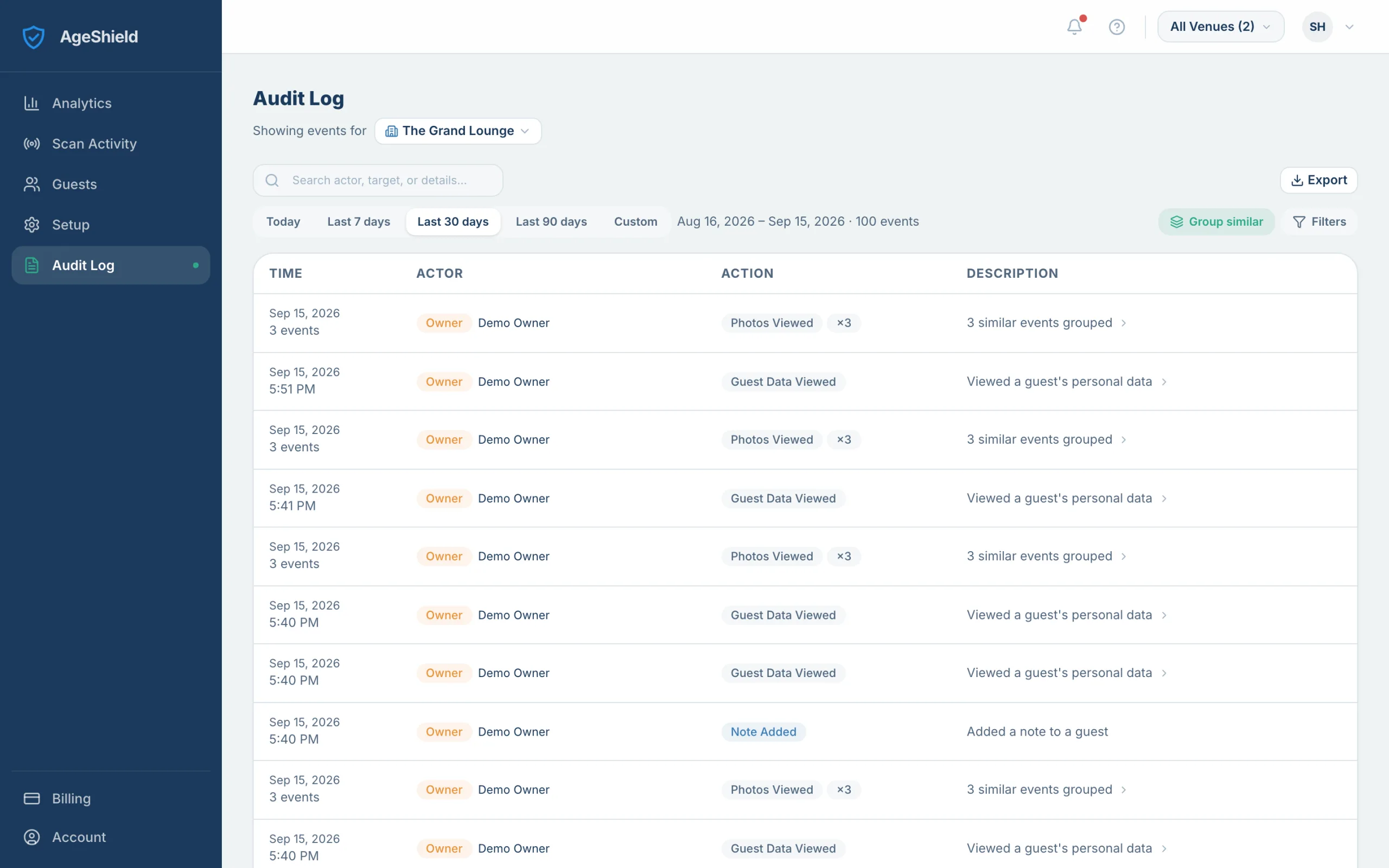
Questions about privacy controls
Can AgeShield be set up so it keeps no personal details?
Yes. Exclude every field the door decision does not need, set the age to whether the guest is old enough, turn guest records off and set retention to 0. AgeShield then keeps a record that the scan happened: when, on which device, by which staff member, what the ID check found, whether the guest met your minimum age and whether you let them in. It keeps no date of birth, age, ID number, address or photo, and no guest record linking one visit to the next.
What is still stored at the strictest settings?
The visit record above, including any note staff typed, kept as written. Codes derived from the first and last name are also kept, but not the name itself. Nothing from the ID is kept in readable form. The audit log separately records that a scan happened, with the device and staff member, and is kept for 7 years.
Is the full ID number ever stored?
No. Where you choose to store the ID number, AgeShield keeps the last four digits and a one-way code that lets the app recognize a returning or banned guest. The full number is never stored.
Does changing a setting change data I already hold?
Lowering your retention window does. Existing visits and photos are re-dated to the shorter window and removed by a sweep that runs through the day. Switching to No Guest Record deletes the guest records built from that venue's scans, and that cannot be undone. Excluding a field only affects new scans.
Who can change these settings and who can see the data?
Owners and managers change venue settings, and staff see them read-only. Every change is recorded with its before and after values. Staff and above can open a guest's details, and each time someone opens a guest's details or photos the log records who, when and from which device. Owners and managers can view and export that log.
AgeShield does not give legal advice, and no default is a statement that a setting is lawful where you operate. Privacy policy and terms.
Related resources
See what sits behind your privacy settings: state rules, guest-facing answers and the full AgeShield workflow.
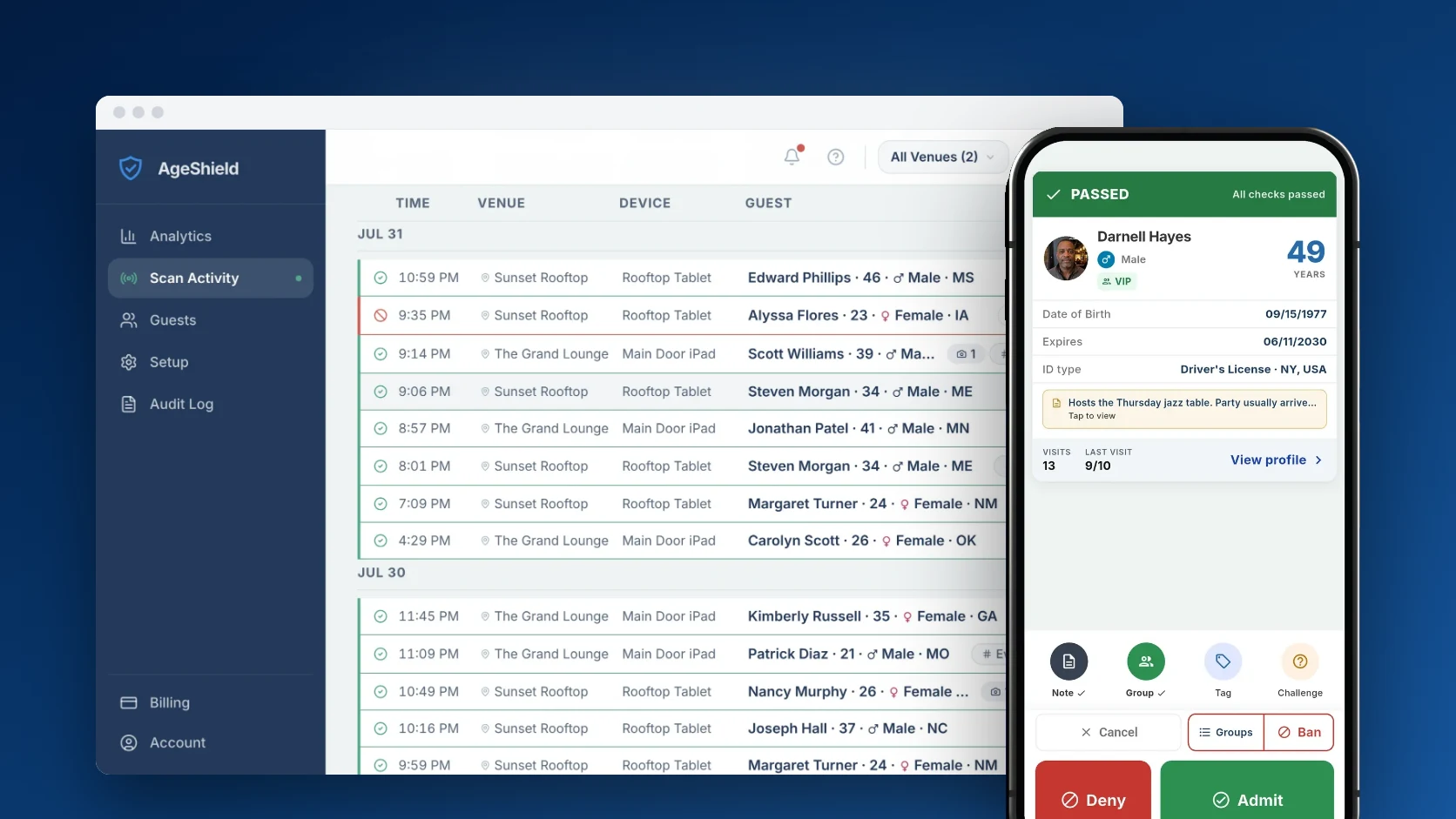 State lawState law
ID scanning laws by state
Check the rules that matter at the door: when to check ID, what you can keep and what protection applies.
 GuideGuide
Why we ask for a card
What to tell a guest who asks about their ID: why you scan it, what you read and what happens next.
- Product
 Product
How AgeShield works
See what happens in the two seconds after a scan: age checks, fake ID signals and what your venue keeps.
Set it up your way
The trial runs 14 days with Pro features on three devices. Set your fields and retention on day one.
Start your 14-day free trial