
How AgeShield checks an ID
AgeShield reads an ID with a phone camera and checks the barcode for signs of forgery on every scan, then shows the result in plain words. Your staff still makes the call, and the app records what they decided.
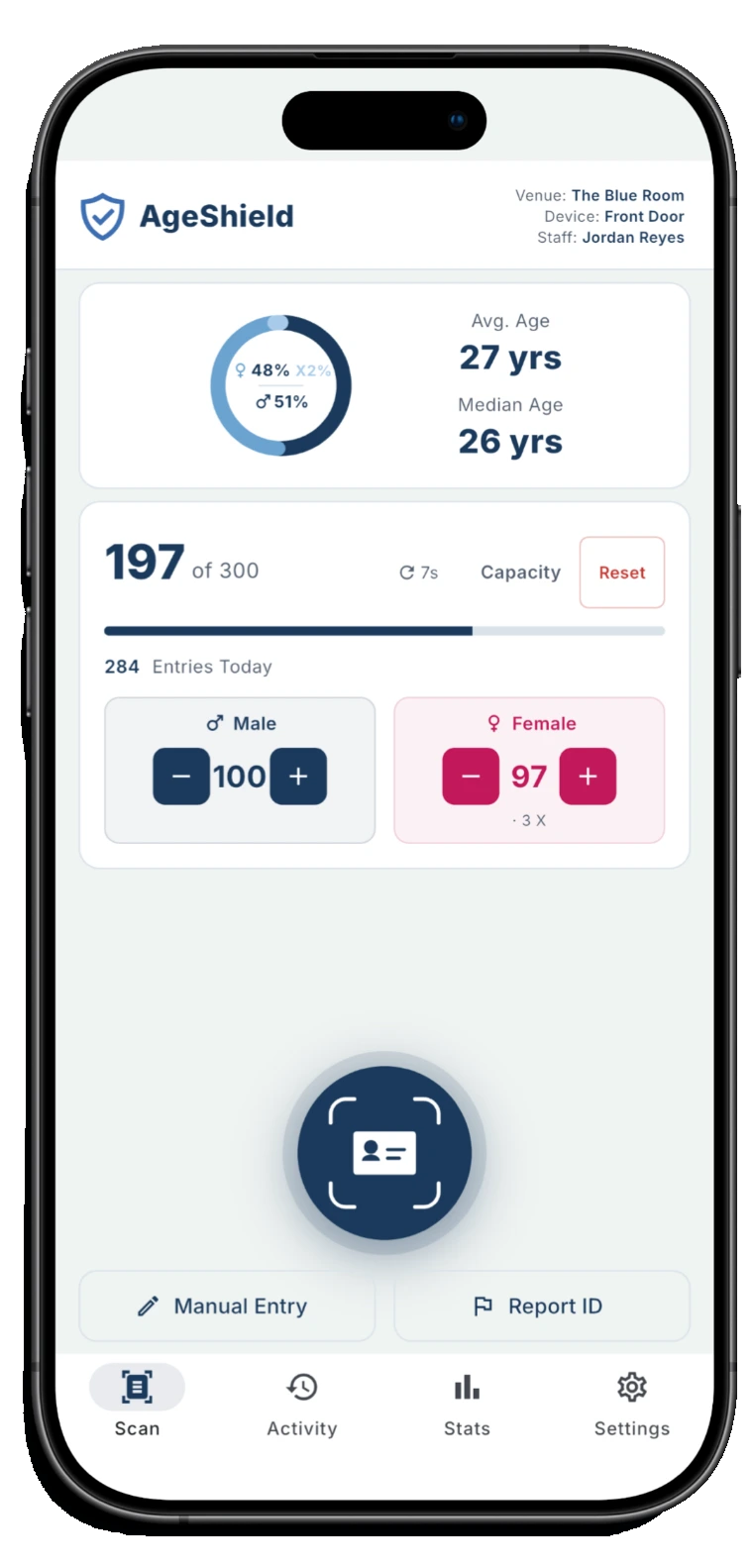
How AgeShield catches fake IDs
AgeShield looks for a fake ID in three places, and your staff see the result before anyone gets in.
A forged barcode
Every scan of a US or Canadian license or state ID barcode runs a forgery check on it, in every scan mode and without a signal.
Checks by scan modeAn altered front
In Secure mode the app also reads the printed front and compares it with the barcode, so an edited birth date, expiry or ID number does not match.
What a flag meansA real ID that is not theirs
No barcode check catches a borrowed ID. So staff can ask a quick question from the ID, like the date of birth or the middle name, and mark the answer.
The questions staff can ask
What a scan reads
AgeShield accepts driver's licenses from any country, US state IDs, US green cards and passports. National ID cards from outside the US are not on that list, so a visitor from abroad should show a passport or their driver's license instead. US military IDs are a separate question: can a bar scan a military ID?
Depending on the document and the scan mode, the app reads one or more of these:
The back barcode
US and Canadian driver's licenses and state IDs carry a PDF417 barcode on the back. It holds the card's data in the format set by AAMVA, the association of US and Canadian motor vehicle agencies. AgeShield treats this barcode as the most trustworthy data on the card.
The MRZ
Passports and US green cards have a machine-readable zone (MRZ): the block of letters, numbers and < symbols on a passport's photo page or the back of a green card. AgeShield reads it in every scan mode.
The printed front
In Fast and Secure mode the app also reads the text printed on the front of a license or ID. Printed text is easier to alter than the barcode, which is why Standard mode does not read it.
When an ID will not scan
If the camera cannot read a document, staff can tap Manual Entry and type the details in. The record is built the same way and is marked “Manual entry”, so anyone reviewing it later can tell the details were typed. Manual Entry is on for new venues, and an owner can switch it off in the hub to require a camera scan for every guest.
Scan modes: Fast, Standard and Secure
The scan mode decides which sides of a US driver's license or state ID staff must show and which checks run. A new device starts in Standard. Passports and green cards scan the same way in every mode, from one side.
- Fast
- “Fastest. Accepts either side of the ID on its own, front or back.”
- Standard
- “Requires the back barcode. A front-only scan is not accepted.”
- Secure
- “Most secure. Requires front and back, cross-checked for tampering.”
Sides neededEitherBackBoth
Sides required for a US license or state ID
- Fast
- Either side
- Standard
- Back required
- Secure
- Front and back
Back barcode readOnly in some casesYesYes
Back barcode (PDF417) read
- Fast
- Only in some cases:When the back is shown
- Standard
- Yes:Yes
- Secure
- Yes:Yes
Printed front readOnly in some casesNoYes
Printed front read
- Fast
- Only in some cases:When the front is shown
- Standard
- No:No
- Secure
- Yes:Yes
Barcode forgery checkOnly in some casesYesYes
Barcode forgery check
- Fast
- Only in some cases:When the back is shown
- Standard
- Yes:Yes
- Secure
- Yes:Yes
Front matches backNoNoYes
Front-to-back consistency check
- Fast
- No:No
- Standard
- No:No
- Secure
- Yes:Yes
Passports, green cardsYesYesYes
Passports and US green cards
- Fast
- Yes:One side, read from the MRZ
- Standard
- Yes:One side, read from the MRZ
- Secure
- Yes:One side, read from the MRZ
Front-only licenseYesNoYes
License with no barcode or MRZ, printed front only
- Fast
- Yes:Accepted
- Standard
- No:Not accepted
- Secure
- Yes:Accepted
Only in some casesOnly when that side of the ID is shown. Tap a check for the details. In Fast mode, a US license scanned from the front only has no barcode to check, so the forgery check does not run on that scan. Secure is the most thorough mode and the slowest at the door.
| Check | FastQuickest at the door | StandardWhere devices start | SecureMost thorough |
|---|---|---|---|
| Sides required for a US license or state ID | Either side | Back required | Front and back |
| Back barcode (PDF417) read | Only in some cases:When the back is shown | Yes:Yes | Yes:Yes |
| Printed front read | Only in some cases:When the front is shown | No:No | Yes:Yes |
| Barcode forgery check | Only in some cases:When the back is shown | Yes:Yes | Yes:Yes |
| Front-to-back consistency check | No:No | No:No | Yes:Yes |
| Passports and US green cards | Yes:One side, read from the MRZ | Yes:One side, read from the MRZ | Yes:One side, read from the MRZ |
| License with no barcode or MRZ, printed front only | Yes:Accepted | No:Not accepted | Yes:Accepted |
The venue sets the floor
Owners can set a Minimum scan mode for each venue in the AgeShield hub. Staff can pick a stricter mode on their device but not a weaker one: modes below the minimum are grayed out and marked Locked. The mode used is saved with every visit.
What the result screen shows
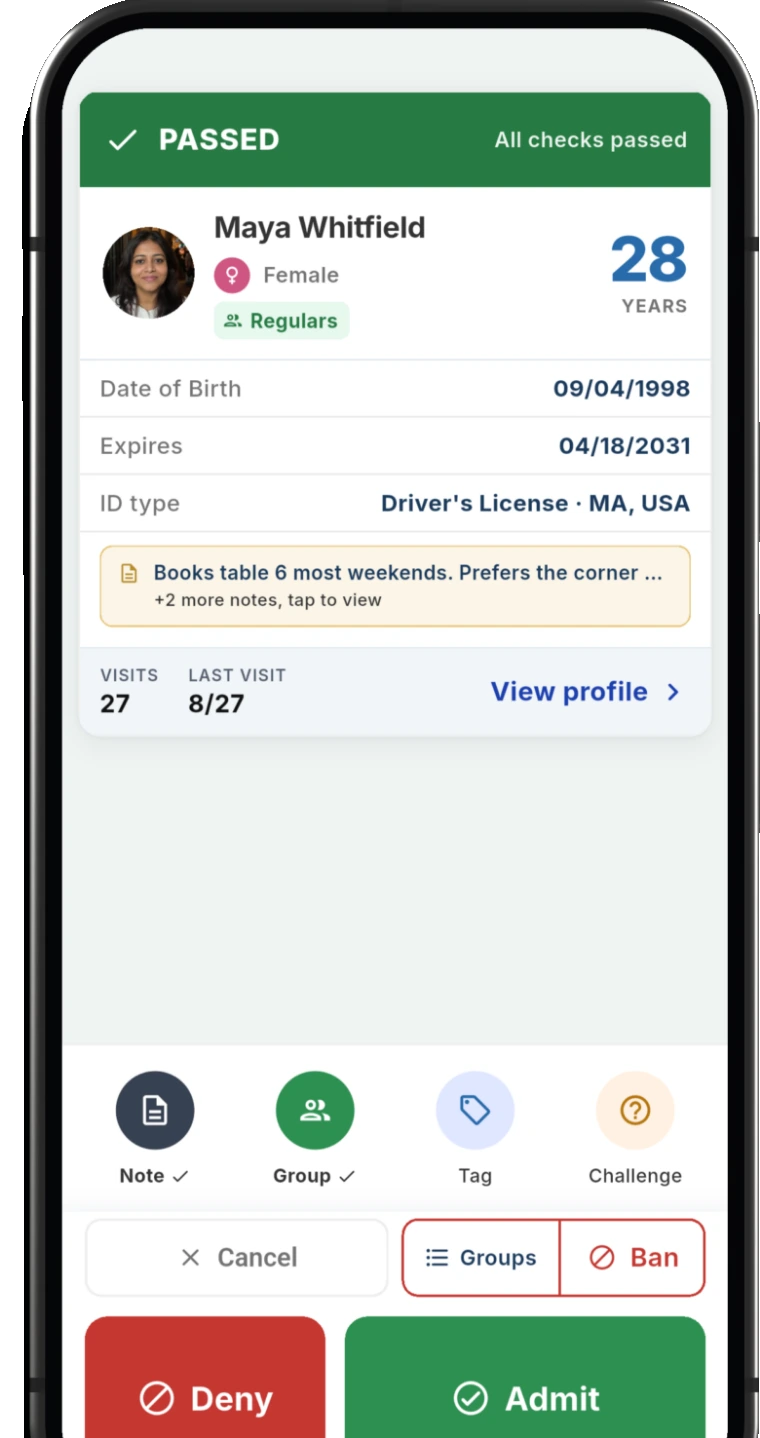
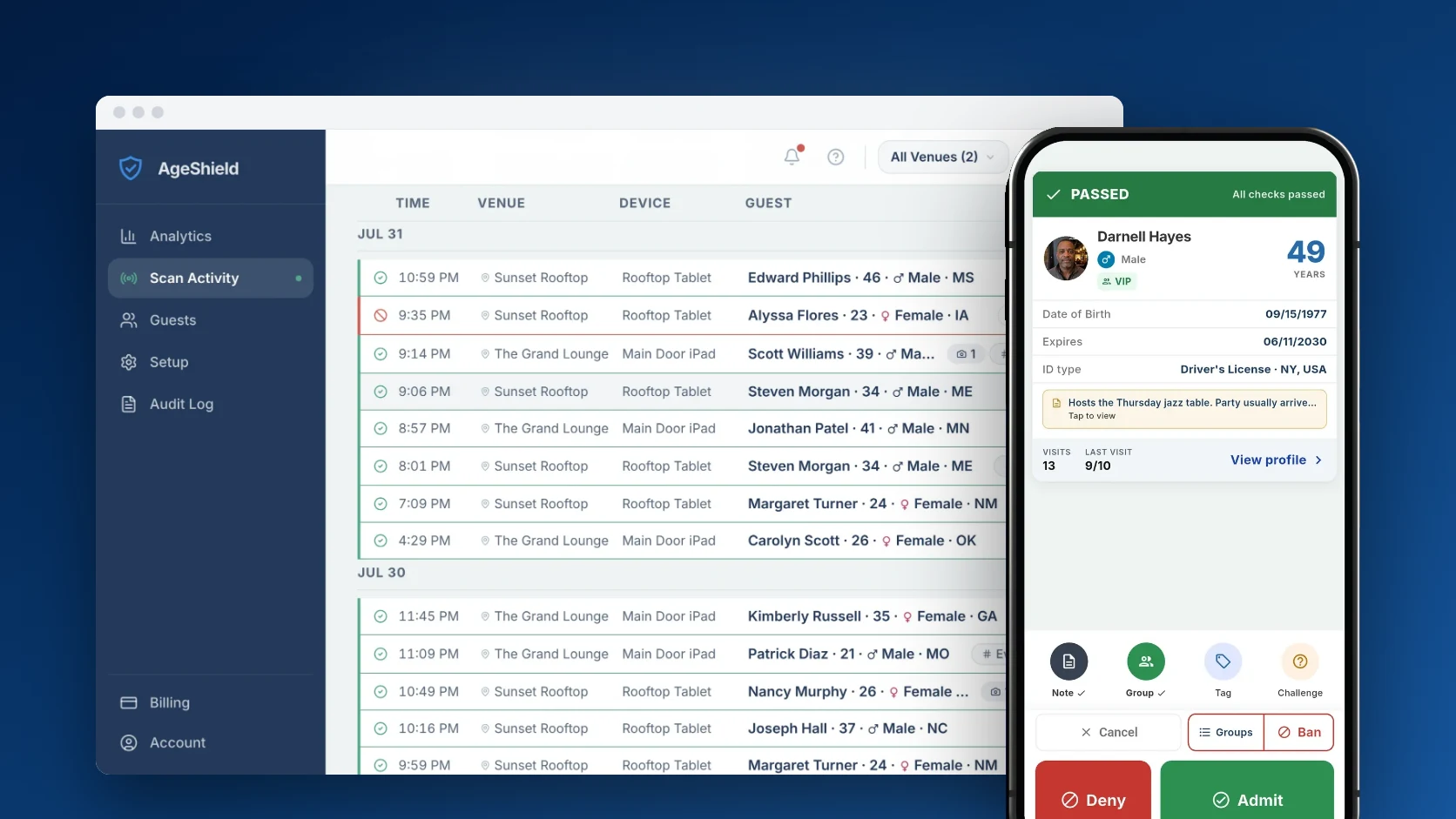
After a scan, the top of the screen shows one result in capital letters with a short line underneath. When more than one applies, the most serious one leads and the others appear as smaller labels. VIP is not a result; it shows as a badge next to the name.
- PASSEDAll checks passed
Nothing was flagged: the checks that ran found no problem, and the guest is not banned, under the venue minimum or flagged as expired.
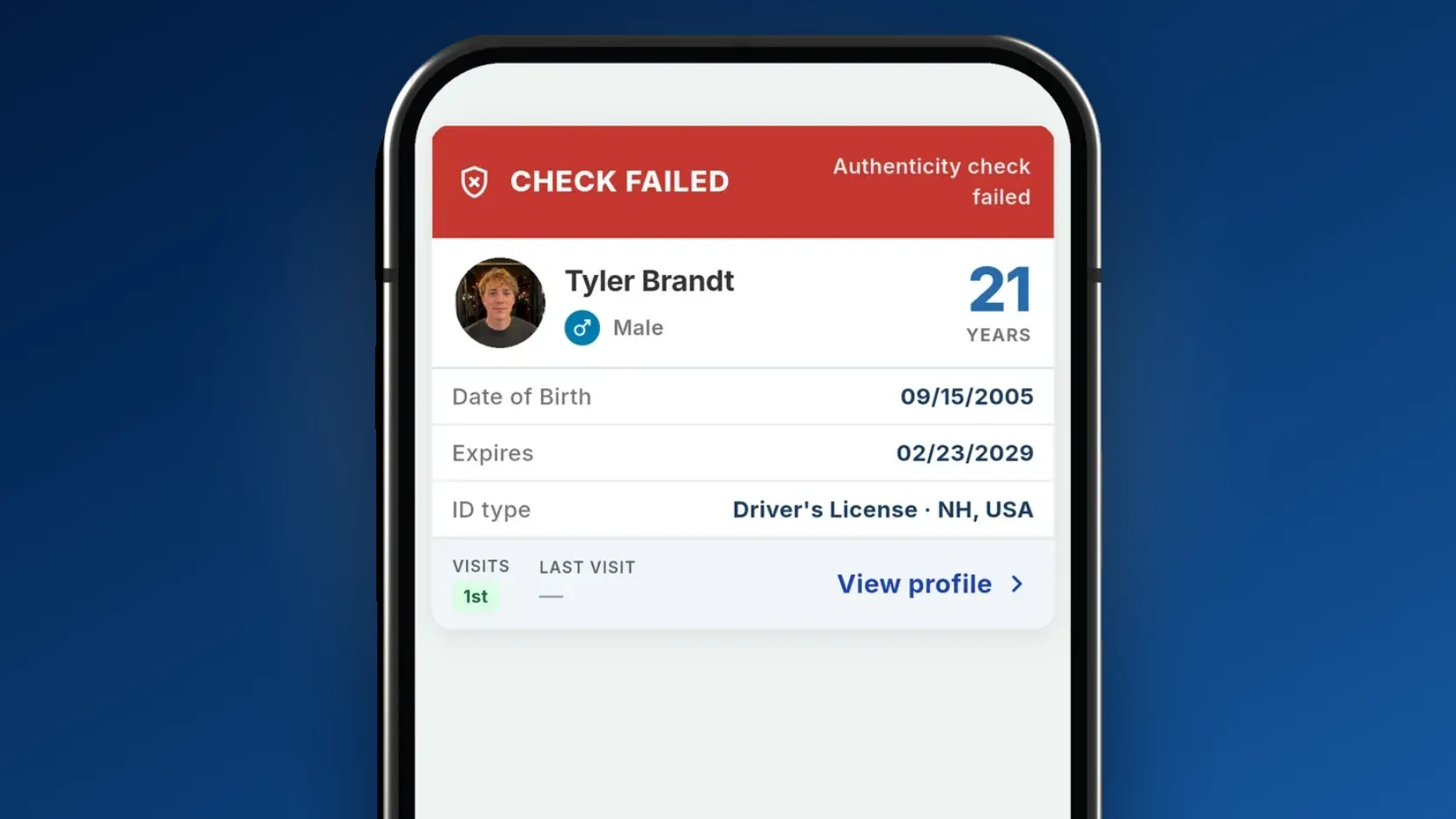
- CHECK FAILEDAuthenticity check failed
The barcode forgery check reported the barcode as forged. In Secure mode, a front and back that do not match also shows this result.
- CHECK FAILED PARTIALLYAuthenticity check failed
The barcode forgery check reported the barcode as likely forged. In Secure mode it also appears when a US license or state ID scan returns no check result at all.
- EXPIRED
The ID is past its expiration date. Venues that turn on Allow Expired IDs in the hub do not see this flag.
- UNDERAGEBelow 21 · venue minimum
The age worked out from the date of birth is under the venue's minimum age. The minimum is 21 unless the owner changes it, and the screen shows the venue's own number.
- BANNEDDo not admit
The guest is on the venue's Banned list or in a group set to deny entry. The line reads "Do not admit · all venues" when the ban covers all of the owner's venues.
- VIP
VIP is a group every venue starts with. Guests in it get a VIP badge next to whatever result the scan produces.
Result wording from the app's result screen, colors from its Activity list. Banned and VIP use each venue's own group colors. The UNDERAGE line shows the venue's own minimum age.
| On screen | What it means |
|---|---|
| PASSEDAll checks passed | Nothing was flagged: the checks that ran found no problem, and the guest is not banned, under the venue minimum or flagged as expired. |
| CHECK FAILEDAuthenticity check failed | The barcode forgery check reported the barcode as forged. In Secure mode, a front and back that do not match also shows this result. |
| CHECK FAILED PARTIALLYAuthenticity check failed | The barcode forgery check reported the barcode as likely forged. In Secure mode it also appears when a US license or state ID scan returns no check result at all. |
| EXPIRED | The ID is past its expiration date. Venues that turn on Allow Expired IDs in the hub do not see this flag. |
| UNDERAGEBelow 21 · venue minimum | The age worked out from the date of birth is under the venue's minimum age. The minimum is 21 unless the owner changes it, and the screen shows the venue's own number. |
| BANNEDDo not admit | The guest is on the venue's Banned list or in a group set to deny entry. The line reads "Do not admit · all venues" when the ban covers all of the owner's venues. |
| VIP | VIP is a group every venue starts with. Guests in it get a VIP badge next to whatever result the scan produces. |
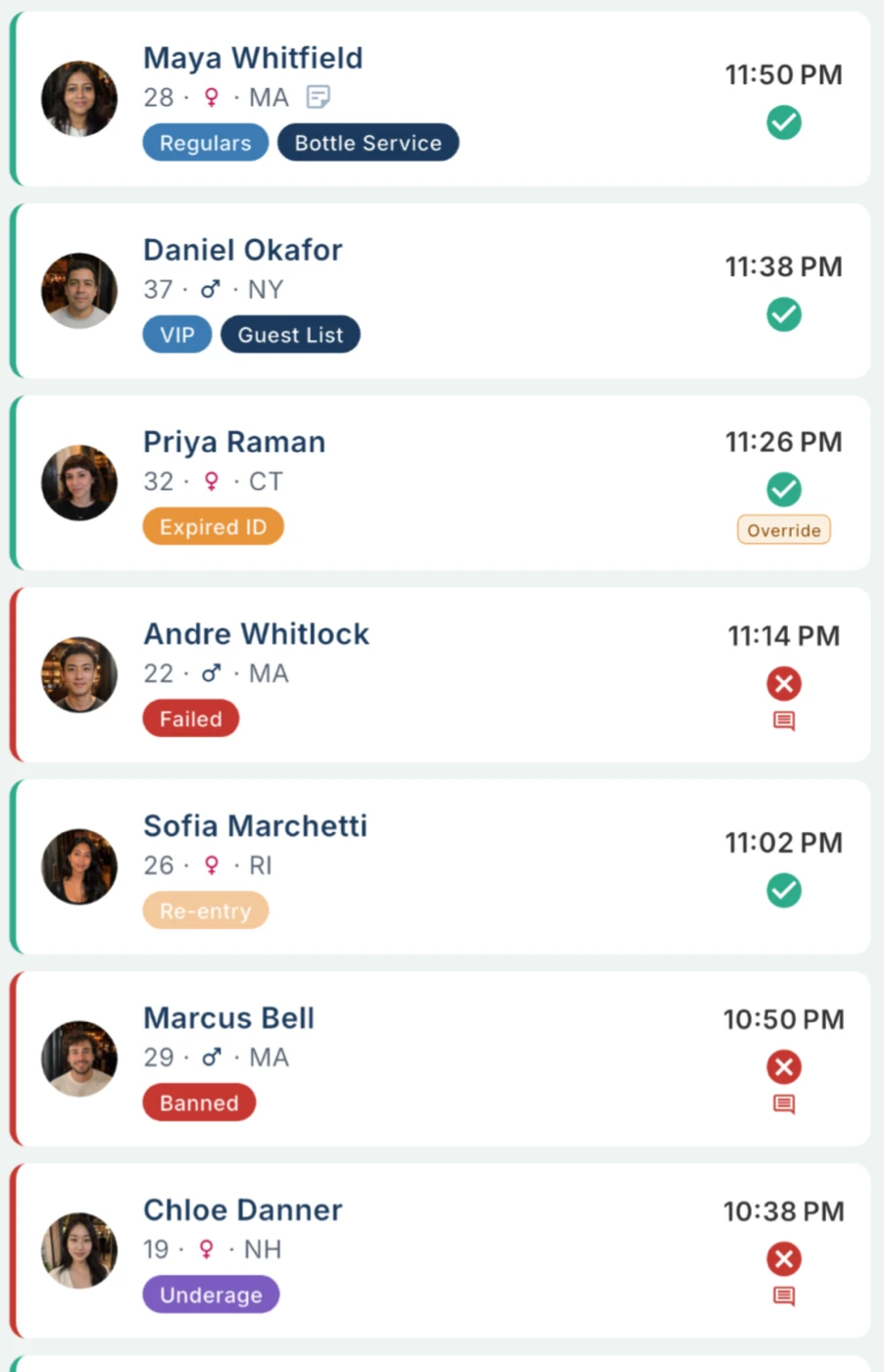
Staff have no override for an underage result. The underage flag only goes away if the owner switches on Allow Underage Entry for that venue, which is off by default.
What a flag means at the door
A flag is how AgeShield stops a suspect ID at the door: a barcode that did not pass its forgery check, or a front that does not match the back. It tells your staff to look closer before anyone gets in. It is not proof on its own that an ID is fake, and a clean result is not proof that one is real, because no scanner catches every fake, ours included.
Your staff make the call and tap Admit or Deny. If you want them to be able to let someone in after a failed ID check, or after a ban, you switch that on in the hub. They are two separate settings and both start off.
When staff do go past a flag, the app asks why and saves the answer with the visit. They pick from:
- Secondary ID Confirmed
- Known To Staff
- Manager Authorised
- Restriction Expired Or Lifted
- Credential Verified By Hand
- Incorrect Scan Result
Brief your team on this: never tell a guest their ID is fake because of a scan result. Calling an ID fake is an accusation, often made in front of other people, and a scan can be wrong. If it is, the guest could bring a defamation claim. Say you cannot accept the ID instead.
- Date of birth matches the front
- Expiry matches the front
- ID number does not match the front
Ask a question when something feels off
The oldest trick at the door is a real ID that belongs to someone else, and no barcode check catches it. So the app gives your staff a second check they can run on the spot. They tap the question, ask the guest, then mark whether the answer was right.
- Date of birth. Ask the guest their full date of birth.
- Zodiac sign. Ask the guest their zodiac sign.
- Middle name. Ask the guest their middle name.
- Credit card name match. Ask for a credit card and check the name against the ID.
- ZIP code. Ask for the ZIP code printed on the ID.US licenses and state IDs, when your venue collects the ZIP
- Full address. Ask the guest to recite their street address.US licenses and state IDs, when your venue collects the address
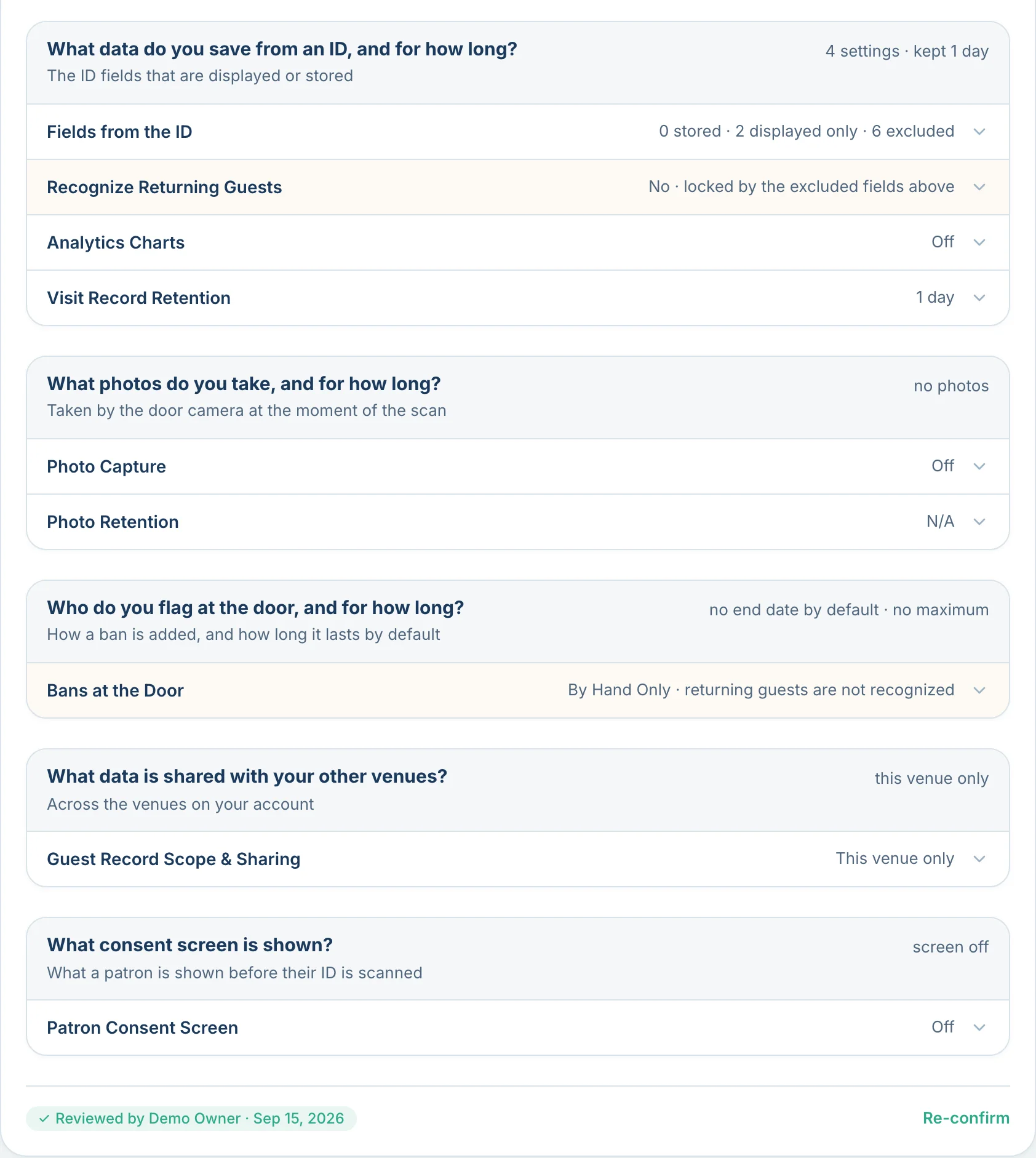
The app reveals the answer from the ID for the questions it can, so staff are never guessing. It only does that for fields your venue has chosen to collect, so a question can never show a detail you decided not to keep. Your privacy controls
Whatever happens next, the record shows it. Passed, failed or skipped is saved with the visit, along with how many questions were asked. If staff admit a guest past a flag, the reason they picked is saved too, and the override is written to your audit log with who did it and when. Months later you can show not just that someone was let in, but what your team checked first.
Catch an ID passed back out the door
A guest gets in, then hands their ID to a friend outside. Set a re-entry window for the venue, from 1 minute up to 24 hours. If the same ID is scanned again inside that window, the result shows an amber re-entry warning and how long ago the ID was last scanned.
It is a warning, not a block. Staff still make the call, and Re-entry Too Soon is one of the reasons they can pick when they deny. Each warning is saved with the scan, shows in Scan Activity and is counted in your analytics.
The window covers every connected phone at the venue. Without a signal, a phone checks against the scans it already has. It stays off until you set a window in the hub, and it needs guest records on, because it matches the ID that was scanned.
When the signal drops
The result is worked out on the phone, so scanning keeps going without a connection. Visits and staff decisions wait on the device and sync once it is back online, and a banner reads “Offline · preliminary, syncs when online” while that is happening.
One thing to know: the Banned list is the copy the phone last downloaded. If it has not synced for 30 minutes, the app warns “Ban list may be out of date · verify manually” so staff know to check by hand.
The check keeps running on the phone
- 9:07 PMPASSEDQueued
- 9:09 PMPASSEDQueued
- 9:12 PMPASSEDQueued
What gets recorded
Every scan creates a visit record: who scanned, when, the document type, the result, the scan mode and what staff decided. Visits show up in Scan Activity and the audit log in the hub.
By default the record also keeps the guest's name, date of birth, gender, issuing state, ID type and expiration date. The full ID number is never stored. AgeShield keeps a one-way hash of it, which lets the app recognize a returning or banned guest, plus the last 4 digits. Owners choose which details are collected, field by field, in the privacy controls.
The venue also sets how long personal details are kept. New venues start at 30 days, and the owner can raise that to as much as 2 years on Core or 5 years on Pro. When the time runs out, the personal details are removed and the visit stays with its decision and an age range in place of the exact age. Personal details of guests on the Banned list are kept until the owner decides otherwise.
Guest photos are a Pro feature and are off until the venue turns them on. The Privacy Policy covers the rest.
Questions about the checks
Does AgeShield just read the date of birth from the barcode?
No. On a US driver's license or state ID it reads the PDF417 barcode on the back and runs a barcode forgery check on it in every scan mode. In Secure mode it also reads the printed front and checks that the front and back agree. It then works out the guest's age against your venue's minimum, flags expired IDs and checks the guest against your Banned list.
What fake IDs does AgeShield catch?
On a US or Canadian license or state ID, every scan checks the barcode for signs of forgery, in every scan mode and offline. Secure mode also compares the printed front with the barcode, so an altered front does not match. For a real ID that belongs to someone else, staff can ask a challenge question from the ID. No scanner catches every fake, so a clean result still leaves the call to your staff.
Are passports and green cards checked for forgery?
The barcode forgery check needs the AAMVA barcode carried by US and Canadian licenses and state IDs. Passports, US green cards and licenses from elsewhere do not have one, so they get no barcode forgery result. AgeShield reads passports and green cards from the MRZ, and the age, expiry and Banned list checks still apply to them.
What if the ID is real but the person is not?
Staff can ask a challenge question at the door. The app offers date of birth, zodiac sign, middle name and a credit card name match for any ID, plus the ZIP code or full address on a US license or state ID when your venue collects that field. The app reveals the answer from the ID for the questions it can, so staff know straight away whether the guest got it right. The outcome, passed, failed or skipped, is saved with the visit and recorded in your audit log.
Can staff let someone in after a failed check, and is that recorded?
Only if the owner switches it on in the hub, and the settings for a failed ID check and for a banned or deny-entry guest are separate. Both are off for a new venue. When staff do override, the app makes them pick a reason from a fixed list: Secondary ID Confirmed, Known To Staff, Manager Authorised, Restriction Expired Or Lifted, Credential Verified By Hand or Incorrect Scan Result. The reason is saved with the visit and the override is written to the audit log with the staff member and the time. There is no override for an underage result.
Does a CHECK FAILED result mean the ID is fake?
Not on its own. The result describes what the scanner observed, such as a barcode that failed its security check or a front and back that did not match. The scanner can also be wrong, which is why Incorrect Scan Result is one of the override reasons staff can pick. Your staff decides whether to admit the guest, and AgeShield's Terms require venues not to tell a guest their ID is fake based on a result.
Related resources
Go deeper on the hard parts of the door: fake IDs, state rules and the privacy controls behind each check.
 GuideGuide
How to spot a fake ID
See what staff can spot by eye, then what a scanner can catch that they cannot.
 State lawState law
ID scanning laws by state
Check the rules that matter at the door: when to check ID, what you can keep and what protection applies.
 ProductProduct
Privacy controls
Choose what you keep and for how long: ID fields, visit retention and tighter data collection.
Try it at your own door
Set a scan mode, scan a few IDs and read the records in the hub. Your first 14 days are free.
Start your 14-day free trial